Importing historical statements — Rentibly How-to
How-to: Owners · Part 4 of 7 · 2:24 · 7 chapters · Watch on YouTube
Chapters
Read the transcript
Hey, and welcome to this Rentibly how-to: importing historical statements. Switching from another system? Let's bring an owner's history across, so nothing starts from zero. Here's what we'll cover — the chapter times are right here, and in your player. Let's get started. Moving to Rentibly from another system?
Bring your owners' history with you. Settings, Owners, Import Statements: record the statements an owner already received, so their balance — and their portal — carry on from where you left off. Pick the owner: Sofia Scott.
Up top, her Rentibly start date: statements Rentibly generates count bookings from that day on. Anything before it is history — and that's what you import. Add imported statement.
Copy the figures from her old statement. The period — January 2025. What her bookings earned, twelve thousand five hundred. Everything deducted — commission, fees, maintenance — two thousand seven hundred and fifty. Rentibly works out the net. And what was already paid to her: nine thousand seven hundred and fifty, so nothing is outstanding.
If any bookings Rentibly already knows about were paid out by the old system, tick them here so they're never paid twice — there are none for this month. You can attach the old PDF, note which system it came from, and add notes. Save. Rentibly offers to move her start date to the day after this period. Her start date is already right, so: Skip.
There it is: the period, bookings, expenses, the net, what was paid, and nothing outstanding. It's marked Imported in Finance, under Statements, and if the owner has portal access, it shows in their statements too. Only an outstanding amount moves their running balance.
Thanks so much for watching! If you're moving to Rentibly, open Settings, Import Statements, and record each owner's last statements from your old system. And if you're not on Rentibly yet, book a demo call, and we'll show you all of this, live.
Moving from another system? Record the statements your owners already received, so their balance and portal carry on where you left off. Shown live on a real Rentibly workspace.
More in Owners
 2:08
2:08How-to · Part 5
Winning new owners
Track owner leads from first contact to signed: the Owner Inquiries pipeline, adding a lead, moving it through each stage, and recording why deals are lost. Shown live on a real Rentibly workspace.
 2:27
2:27How-to · Part 1
Owner defaults
The rules behind every owner statement: when revenue counts, cash or accrual, channel-collected money, commission and fees, and payouts. Shown live on a real Rentibly workspace.
 2:17
2:17How-to · Part 2
Owner expenses and categories
Set up the expense categories your team logs costs against, record an owner-paid expense with its receipt, and keep regular costs on a schedule. Shown live on a real Rentibly workspace.
 2:39
2:39How-to · Part 3
Designing the owner statement
Design how owner statements look with Statement Views: layout, columns, the gross-to-net summary, the expenses section and the PDF — with a live preview. Shown live on a real Rentibly workspace.
 2:13
2:13How-to · Part 6
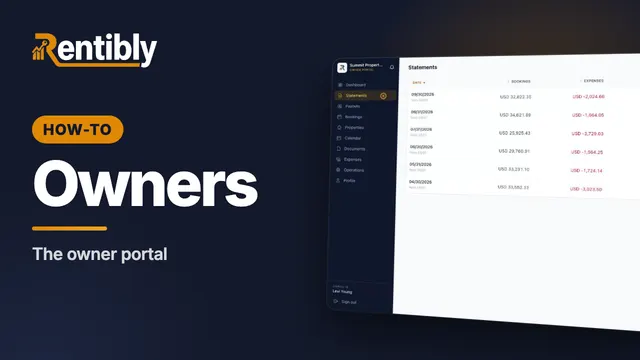
The owner portal
What your owners see when they sign in: their earnings, statements, payouts, bookings, calendar, expenses and documents. Shown live on a real Rentibly workspace.
 2:57
2:57How-to · Part 7
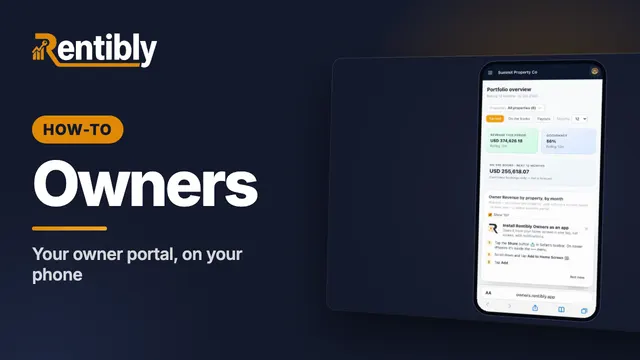
Your owner portal on your phone (for owners — share it with them)
Your owner portal, on the web and on your phone: sign in with a code, see what your homes have earned, open your statements and payouts, install the portal as an app on your iPhone or Android phone, and turn on notifications for new bookings, statements and payouts. Questions? Message your property manager from Chat, right inside your portal.
Count your subscriptions. Then count ours.
A 30-minute demo on your numbers — every tool you pay for today, mapped to its native Rentibly module.
Book a demo